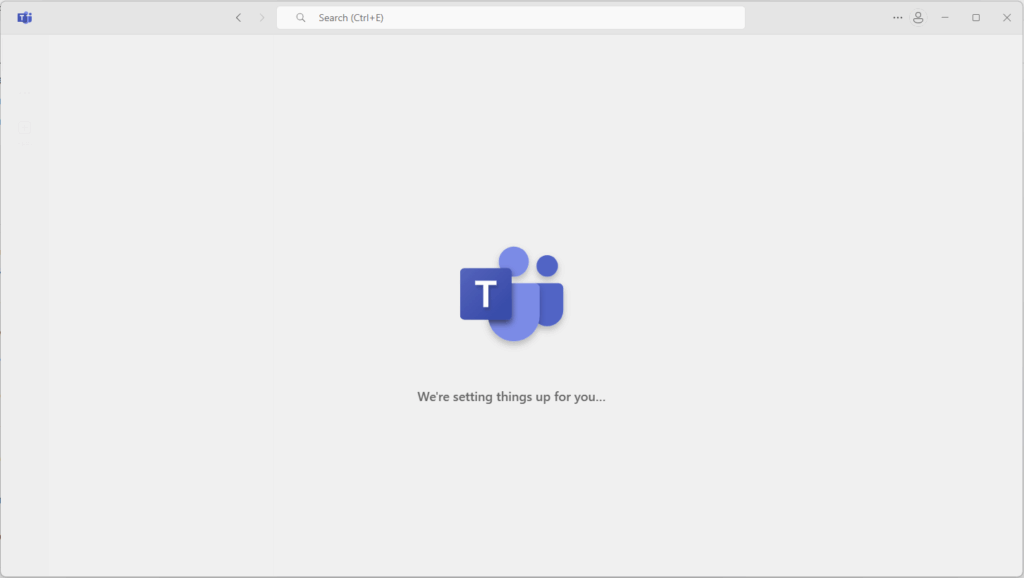
Teams not starting up?
New Teams app not starting up automatically when starting up in the morning?
Well, it all started after i updated my Teams application for Work/Personal. I thaught that it was because it couldnt figure out to start both at the same time, but after some digging I found out that it´s a bug. Teams is actually starting in the background but not registering the application in the system tray or process bar.
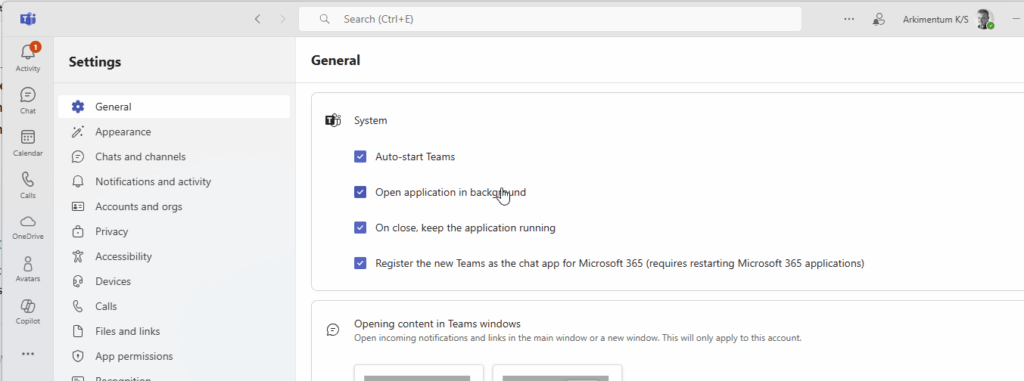
All settings says that we are good to go?
Even when checking that Teams should auto-start and open in the background the settings does not apply?!
So here is the fix for Teams Auto-start
Powershell script:
Start-Process “ms-teams.exe” -ArgumentList “msteams:work”; Start-Sleep -Seconds 5; Get-Process “ms-teams” | % { $_.CloseMainWindow() | Out-Null }
And command:
powershell.exe -NoProfile -WindowStyle Hidden -ExecutionPolicy Unrestricted -Command “Start-Process “ms-teams.exe” -ArgumentList “msteams:work”; Start-Sleep -Seconds 5; Get-Process “ms-teams” | % { $_.CloseMainWindow() | Out-Null }”
The walk through of what it does
The script starts process ms-teams, and the thing is that it’s not enough just to create a short cut and copy to start up folder, as we all know UWP applications tens to change directory with version upgrades.
So, start-process was the way, and it starts with the argument “:work”
this starts the work/school version of Teams, if you have a personal just use “:consumer”
It waits 5 seconds for the application to open the window, and then closes it gracefully. (You do not want to kill the process) I personally do not want applications to stay open when I started Windows up. But you can always pull out the “; Start-Sleep -Seconds 5; Get-Process “ms-teams” | % { $_.CloseMainWindow() | Out-Null” then it just starts maximized.
Start as ps1 or command?
You can now create a shortcut that runs the command from your shell:autostart folder, or just put it in the Registry. This can be run in User context!
Computer\HKEY_CURRENT_USER\Software\Microsoft\Windows\CurrentVersion\Run
as a REG_SZ
Name: Teams Autostart
Data: powershell.exe -NoProfile -WindowStyle Hidden -ExecutionPolicy Unrestricted -Command “Start-Process “ms-teams.exe” -ArgumentList “msteams:work”; Start-Sleep -Seconds 5; Get-Process “ms-teams” | % { $_.CloseMainWindow() | Out-Null }”
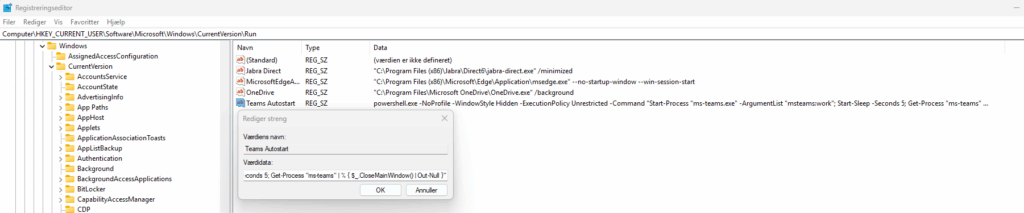
And now your Teams will autostart, and minimize/close the window, and you now have the Teams Icon running in the background as it should

Download the add ms-teams autostart command to registry powershell script from my github HERE